A rental brings together a customer, some dates and some products. This guide follows its complete journey: creating it, handing it out, receiving it back and closing it.
Create a rental
- Click New Rental (in the sidebar or in Rentals).
- Choose the customer. If they do not exist yet, create them first (see Customers).
- Set the start and end dates.
- Add the products or packages being rented.
- If it applies, add additional services, a discount and a deposit (see below).
- If any product has an associated form, Leaxio adds a step to fill it in before the review.
- Review the summary and confirm the rental.
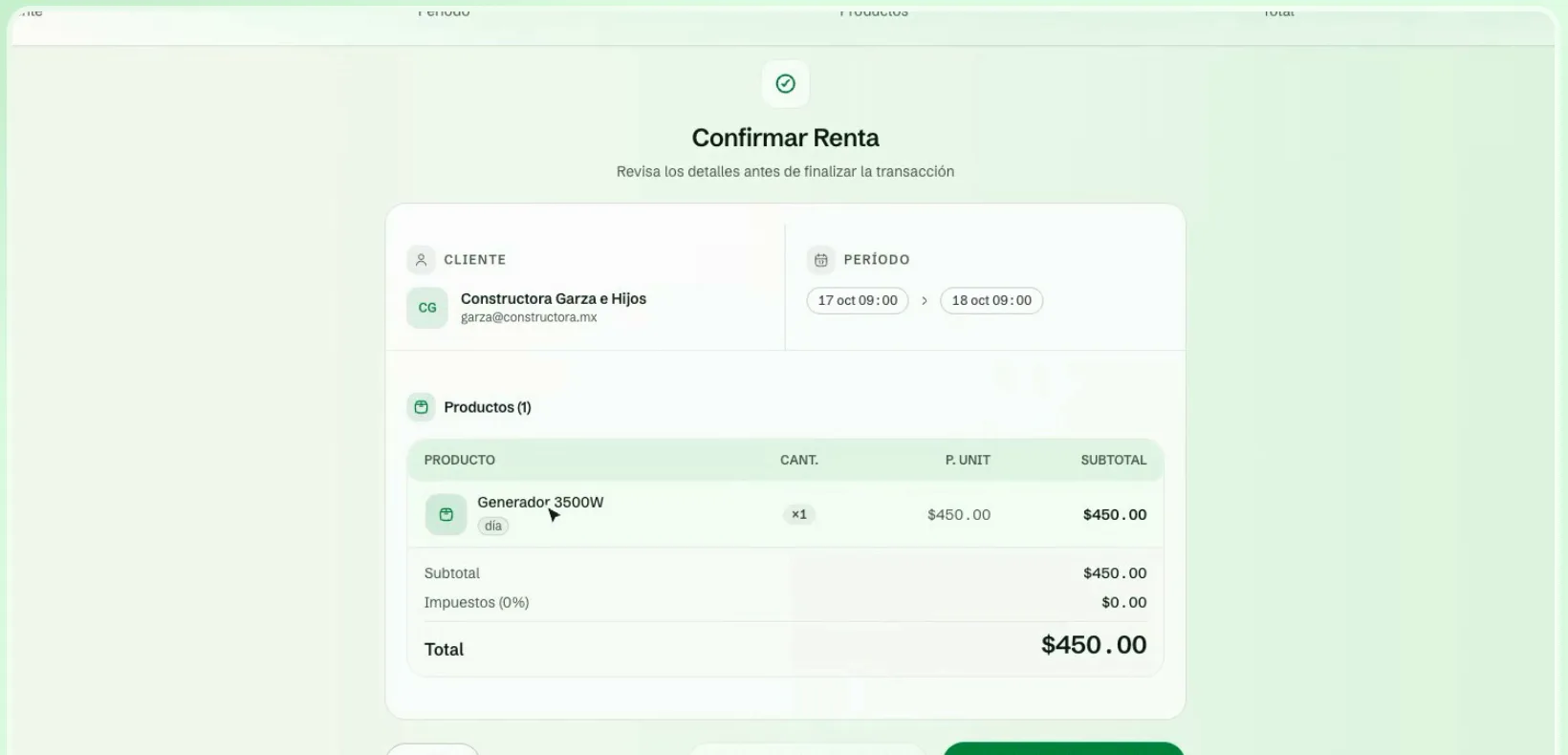
Leaxio will not let you rent a product for dates it is already committed. To check availability beforehand, use the Calendar.
Deposit
When creating the rental you can record the guarantee the customer leaves. The options are:
| Type | What you record |
|---|---|
| No deposit | Nothing |
| Money | The deposit amount |
| ID Document | Which one the customer left (for example, a driver license or passport) |
| Valuable object | A description of the object |
The lifecycle of a rental
Each rental moves through these states. You will see them in the Rentals list and on each rental's detail page:
- Reserved: the customer, the dates and the products are set aside.
- Preparing: you are getting the equipment ready.
- Ready for pickup: everything is ready to be handed out.
- Picked up: the customer already has the equipment.
- Return due: the return date is approaching. If the date passes, the rental moves to Return overdue.
- Pending close: the equipment is back, but the settlement and closure are still pending.
- Closed: the rental ended.
The list also shows an overall status: Active, Overdue, Completed or Cancelled.
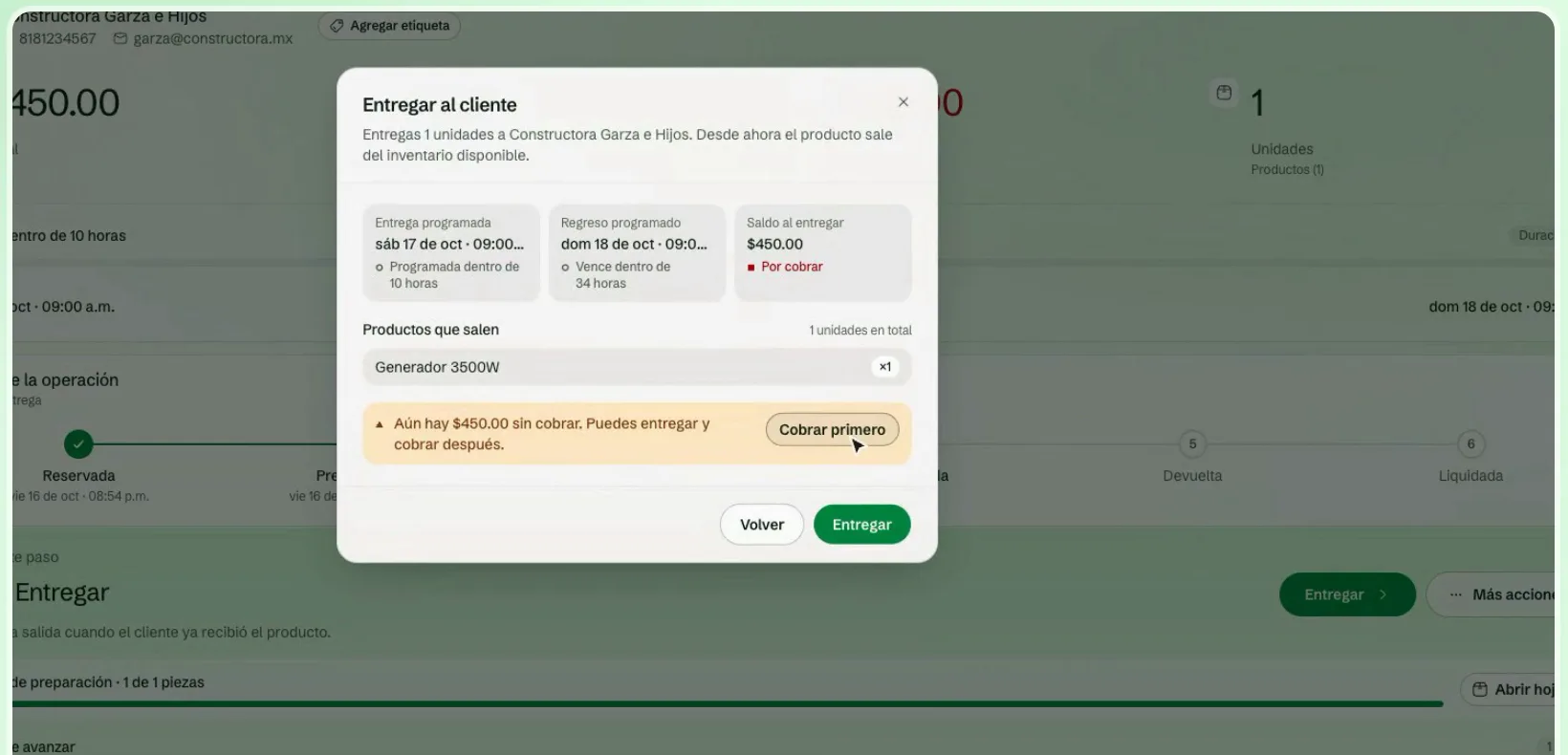
Receive the equipment
When the customer brings the equipment back, register the physical return. This frees the inventory and unlocks maintenance and closing. It does not charge the rent or refund the deposit automatically: you do that when you settle.
Partial returns
If the customer returns only part of it, use Register return: enter how many pieces came back today (or Select all). What is missing stays pending on the rental, and the detail shows the progress, for example "3 of 5 pieces returned". If you prefer, use Scan and read the label of each returned piece: one is marked per read (see Scanner and labels).
Late returns
When equipment comes back late, Leaxio suggests a late fee according to the policy you set, and you decide whether to record it before settling. See Organization settings.
Quotes, calendar and agreements
Three tools surround a rental and are worth knowing:
- Quotes: if the customer wants to see a proposal before deciding, quote it and convert it into a rental once accepted, without re-entering the data.
- Calendar: pickups and returns by day, with filters by product and status.
- Rental contracts: generate the agreement from the rental's data and share the link so your customer can sign it.