A package combines several products into a single line with its own price: a lighting kit, a full setup, a party combo. It is added to the cart of a rental, a quote or a sale like any other product.
Create a package
- Go to Packages and click New package.
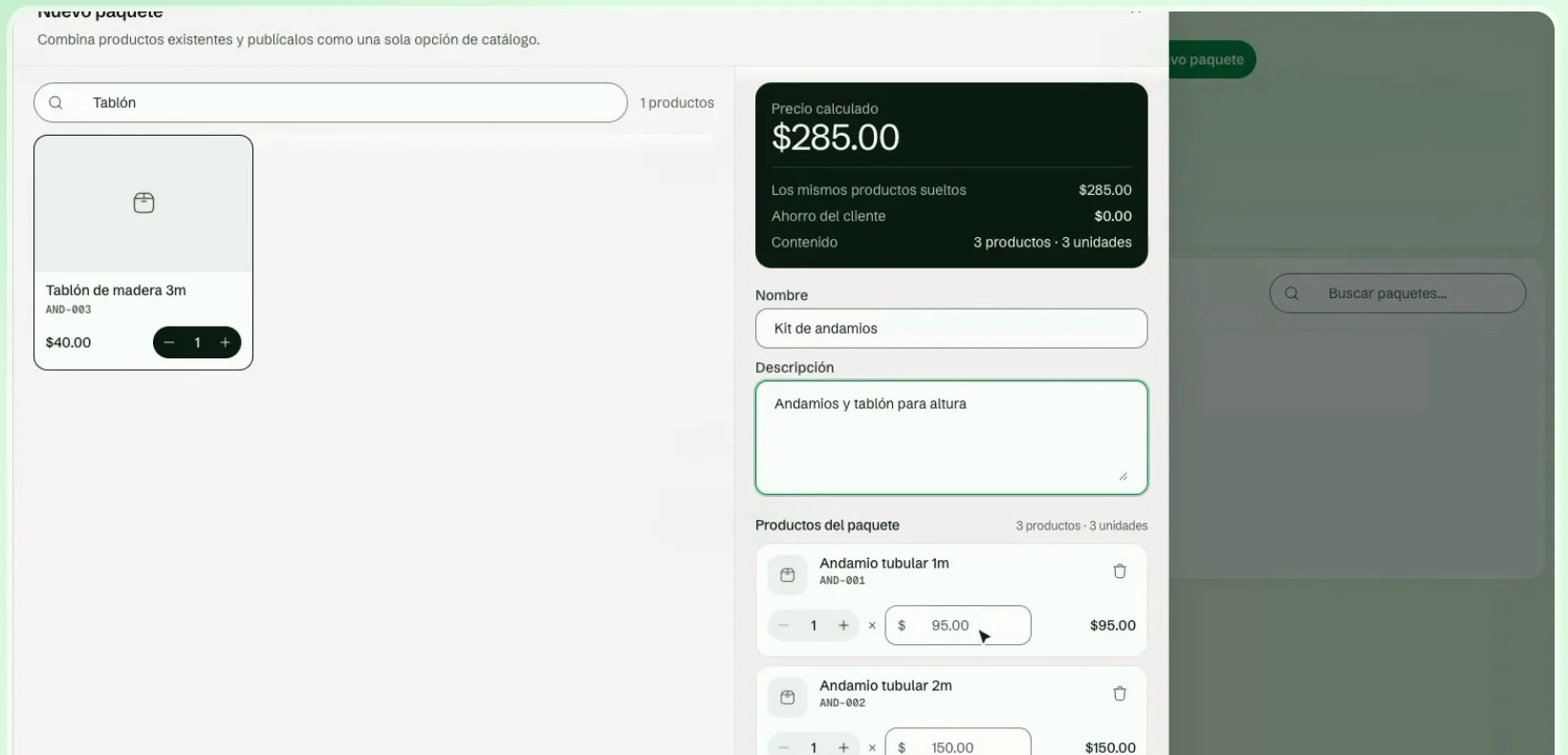
- Enter the name and, if you want, a description.
- With Search product, find the products and add them. Use the plus and minus buttons to set how many units of each the package includes.
- Set the price (see below).
- Click Create package.
You can only include products that are active for rental. If you see none, create your products first in Products and inventory.
Fixed or calculated price
| Mode | How it charges |
|---|---|
| Fixed | You charge the price you set, whatever the products add up to. The editor shows the sum of the products as a reference. |
| Calculated | Adds up each product's price, including any adjustments you set on each one. |
The package summary compares against the same products sold separately: if the package costs less, you see the customer savings (in money and percent); if it costs more, you see the surcharge. It also shows the contents (how many products and units) and how many packages can be built today with your stock.
Manage your packages
In Packages, each card shows the products it includes, the savings and the stock (Out of stock or how many to build). From its menu you can:
- Edit its composition and price.
- Duplicate, to build a variant without starting from scratch.
- Deactivate or Activate. An inactive package does not appear when building rentals or quotes.
- Delete. Existing rentals that use it are not affected.
On top you see how many packages you have, how many are active and the average price, and you can filter by All, Active or Inactive.
Use it in a rental
When creating a rental, click Add package and choose the one you need. In the cart it appears as a single line (Packs) with the list of what it includes, and you can change the number of packages.