The Calendar is the operational view of your rentals: what goes out, what comes back and which product is free on each date.
Choose the view
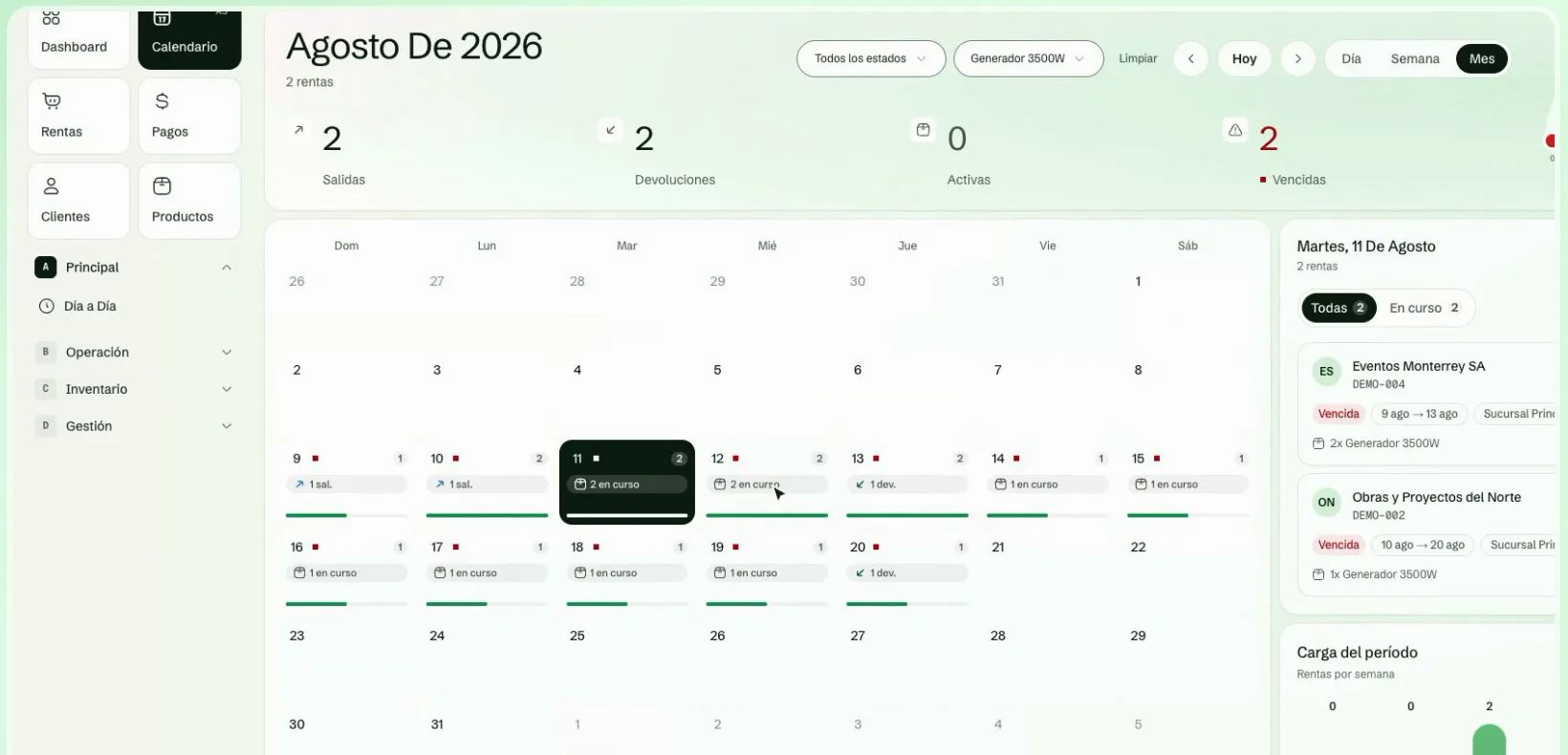
At the top you can switch between Month, Week and Day, move with Previous and Next, and jump back to today with Today.
- In Month, each day shows how many pickups, returns and ongoing rentals it has.
- In Week and Day you see rentals in more detail. The day view shows rentals by hour and the day's load.
- Tap a day to see its rentals in the panel on the right.
Period summary
Above the calendar you see four figures for the period you are looking at: Pickups, Returns, Active and Overdue. On the right, Rentals on time shows how many rentals are not overdue, and Period load shows how many rentals there are per week.
Filter
With Filters you can see only what matters to you:
- Status: Active, Overdue, Completed or Cancelled.
- Product: for example a generator, and you will see only the dates when it is rented.
- Branch.
Check a product's availability
To know whether you can fulfill a new request, filter by Product: the calendar shows only the dates when that product is rented. To see how many units are still free on a specific day, open its page in Products, where availability is shown per day.
Create a rental from the calendar
If a day has no rentals, the calendar offers Create a rental so you can start from that date. See Rentals.