This guide explains how to record a payment, which payment methods you can use and where to check what you are owed.
Charge for a rental
- Open the rental you want to charge for.
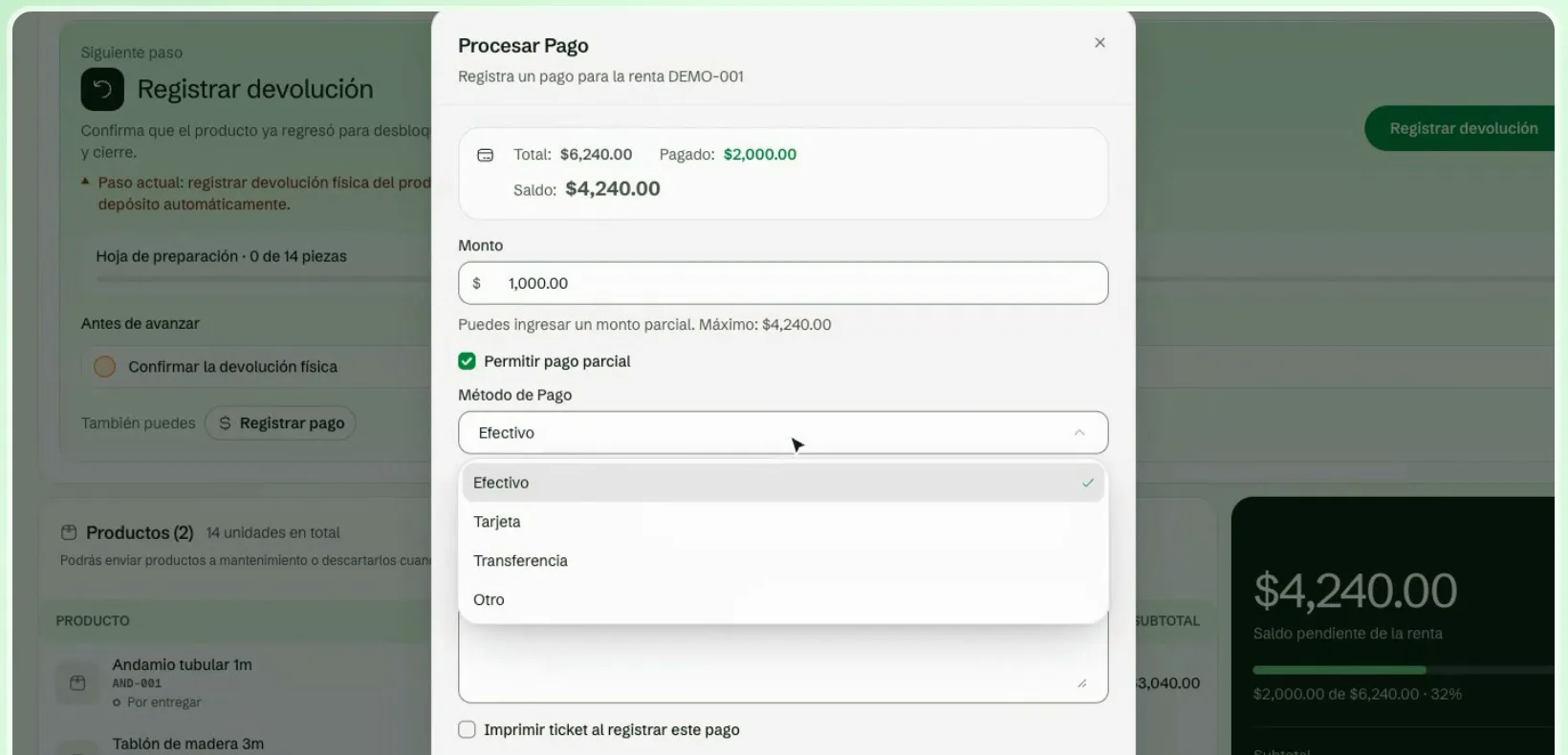
- Record the payment. You will see the rental's outstanding balance.
- Choose the payment method.
- Confirm.
Full or partial payment
By default you can charge the full balance. If the customer pays part of it, turn on Allow partial payment and enter the amount. The maximum is the outstanding balance. The rest stays as an amount to collect and you can record more payments later.
Payment methods
- Cash
- Credit card
- Debit card
- Transfer
- Check
- Other
Check your payments
In Payments you see all recorded payments, with totals at the top: total payments, completed payments, pending, total amount and total in deposits.
You can filter the list by:
- Status: Paid, Pending, Overdue or Cancelled.
- Payment method.
You can also search by the text of the payment notes.
Collections
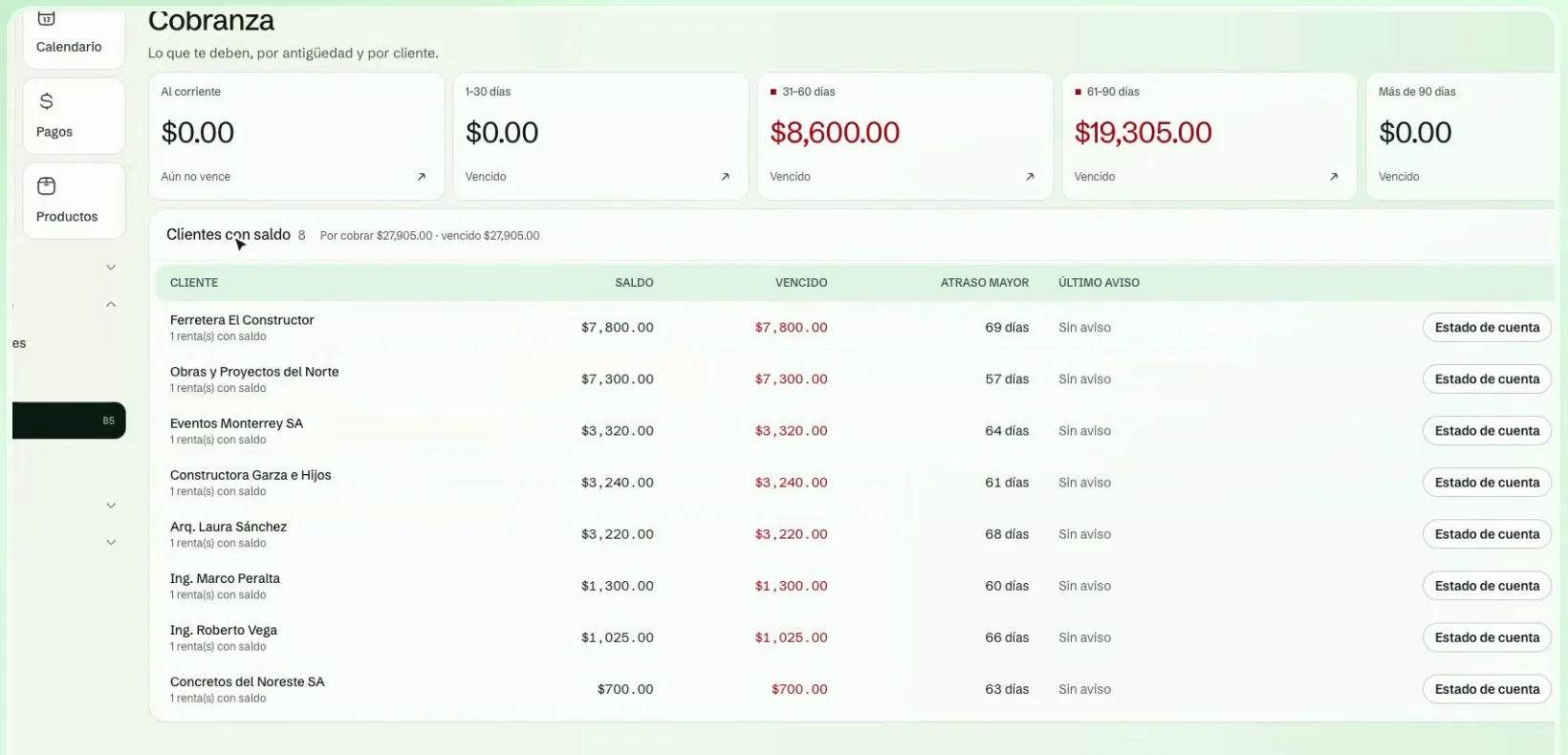
In Collections you see what you are owed, by age and by customer. The balance is grouped into buckets (current, 1–30 days, 31–60 days, 61–90 days and over 90 days) and each customer with a balance appears with what they owe and what is already overdue. When a rental has no outstanding balance, it does not appear here.
Correct a payment
If you recorded a payment by mistake, you can cancel it from Payments. When you cancel it, the balance reappears on the rental and you can charge for it again.