Leaxio generates a rental agreement from the data you already entered. Your customer reviews and signs it from a link, and you keep the signed PDF.
Before generating the first one
Do these two things once, in Organization settings:
- Tax information (Business tab): legal name, tax ID (RFC) and tax address. The agreement identifies the lessor with them.
- Terms and conditions (Operations tab): write the text and turn on Show on contracts.
If either is missing, the rental tells you and shows where to complete it.
Generate the agreement
- Open the rental and find the Rental agreement card.
- Click Generate agreement.
- Review the document with View PDF.
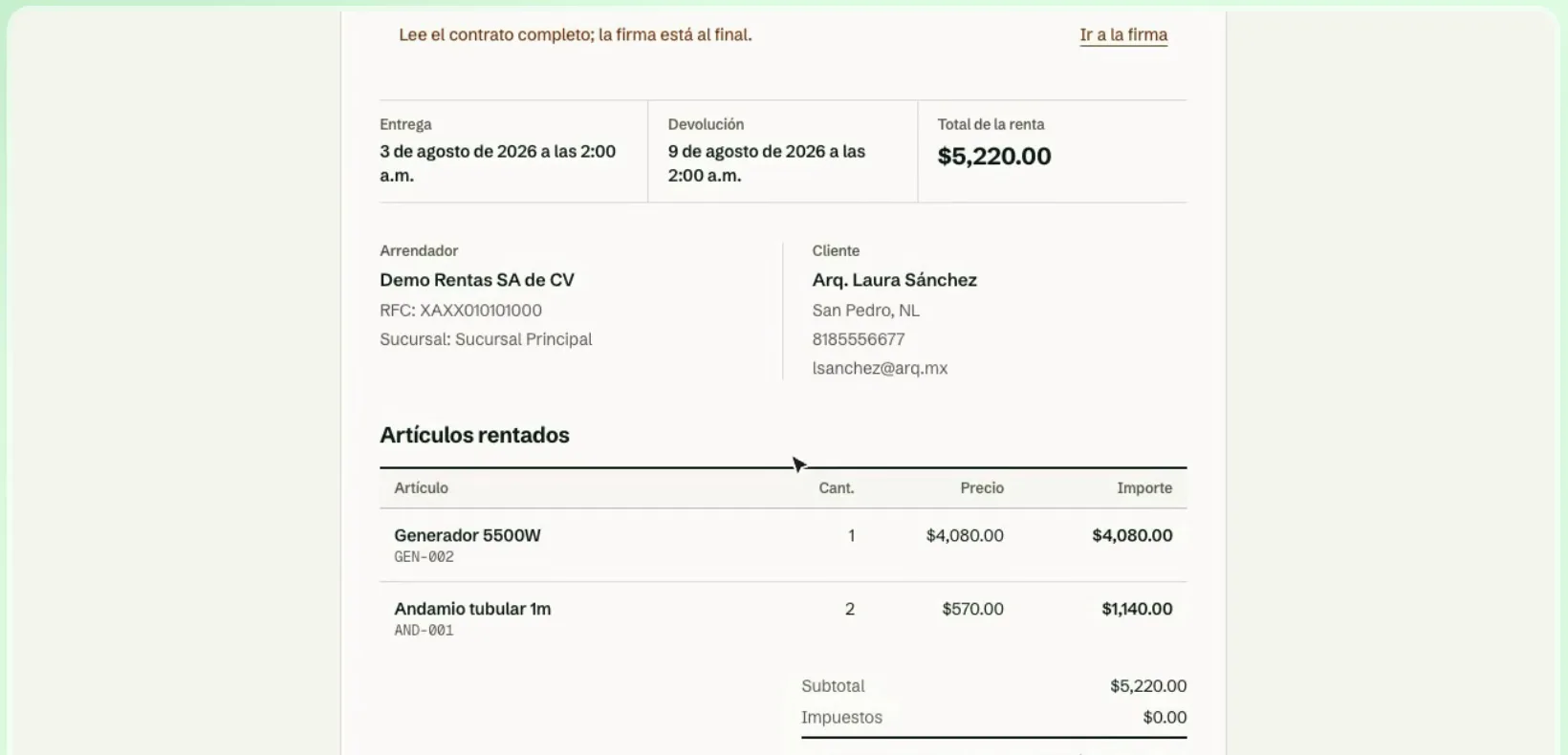
If you change anything in the rental, use Generate again: it replaces the pending agreement. A signed agreement is never modified.
Share the link to sign
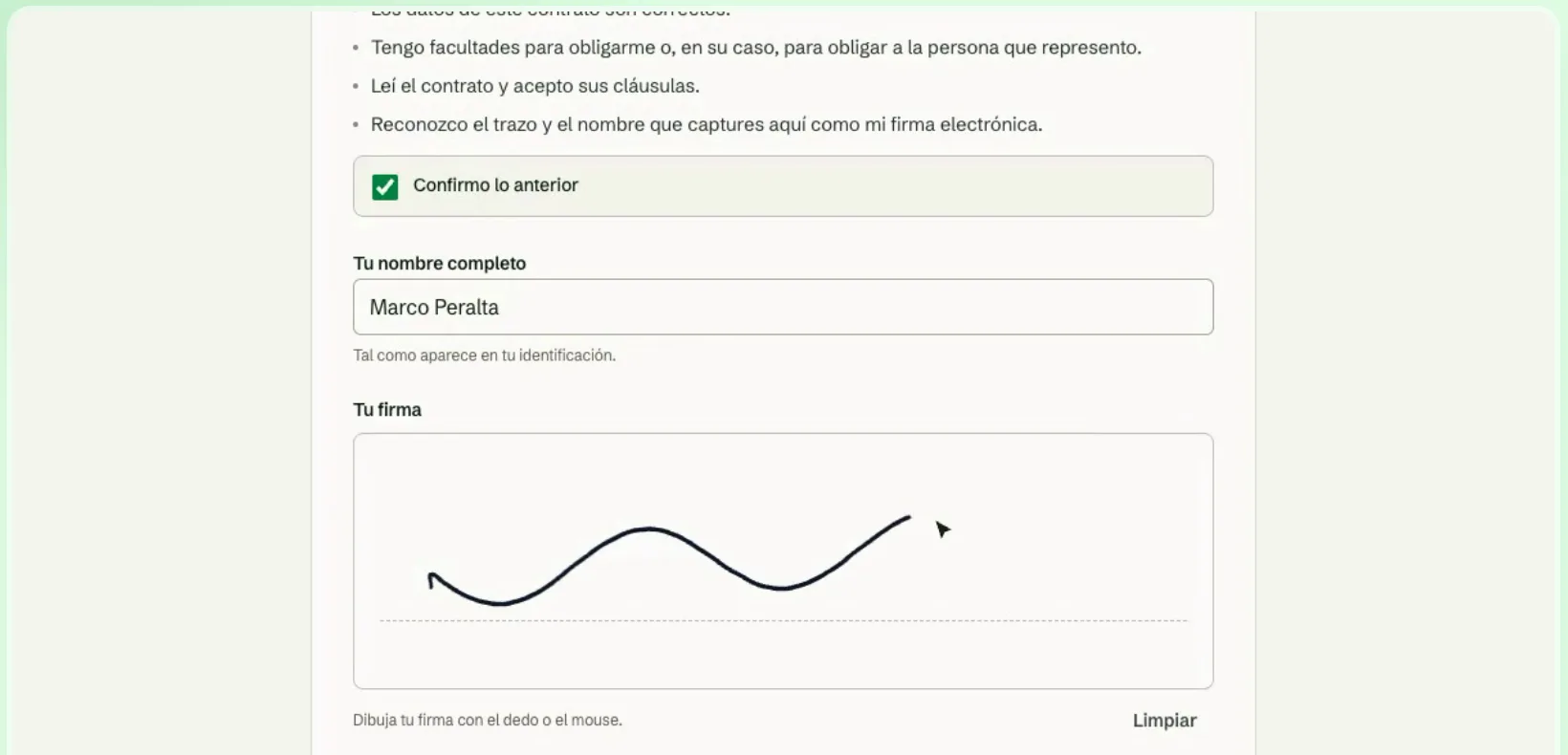
Use Copy link or WhatsApp, which opens the message with the link ready. Your customer opens the agreement, reads it, confirms they accept it, types their name and draws their signature.
Track the status
The card tells you where it stands:
| Status | What it means |
|---|---|
| No agreement | You have not generated it yet. |
| Pending signature | Generated; you can see whether the customer has opened it. |
| Signed | Shows who signed and when. You can open the signed PDF. |
While it is pending you can Void the agreement to generate it again.